Keep Column Headers Visible while scrolling in SSRS 2008

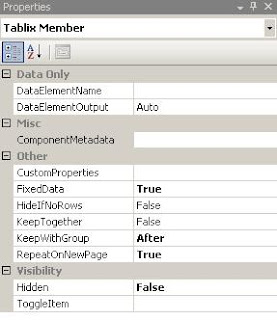
When you try to set up Tablix property for keep header visible while scrolling, you will see that it is not working in SSRS 2008 or SSRS 2008 R2. You need to take some extra steps to set up this property

1)      Uncheck keep header visible while scrolling tab under tablix property


2)      Go to Grouping and Click on the right side arrow (Advanced Mode)

3)      Select the first Static Property in Row Groups (In your report first row should display column headers)

4)      Make Fixed Data = True
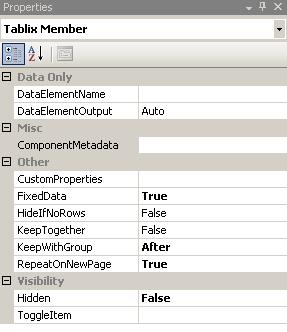
         
      
5)      Run the report and you will get column headers visible while scrolling

Hope it helps!

Thanks

Comments

  1. Hi Hardik,

    1) Create a new dataset to populate parameter values

    Ex: select distinct city from table1 where city is not null
    union
    select 'ALL' as city from dual
    order by 1

    2) Modify your main dataset query
    Ex: where (city = :city or 'ALL' = :city)


    In the second point he told to modify the main dataset? Can you explain clearly...

    because what i did is i was using a store procedure, so in the store procedure iin where condition i have given like this

    "where Category IN (SELECT * FROM udfMultiValueParm(@Category,','))"

    modified:

    "where 'ALL' IN (SELECT * FROM udfMultiValueParm(@Category,','))"

    Is it correct because when i have used the second statement and execute i am not able to get data.


    can you help me out?

    ReplyDelete
  2. Try this:

    where (Category IN (SELECT * FROM udfMultiValueParm(@Category)) OR @Category = 'ALL')

    then go to the main dataset property --> parameters --> for (@category) parameter value --> =Join(Parameters!Category.Value,",")

    ReplyDelete
  3. Hi Hardik I want first row should be visible while scrolling but its not working. Please do the needful.

    ReplyDelete
  4. Works superbly, thanks very much been trying to figure this out for ages!

    ReplyDelete
  5. Thanks a lot..It works..

    ReplyDelete
  6. Thanks a lot, it works...

    ReplyDelete
  7. Wow...works great !!!!!!!!
    saved my time

    --Ravi Srivastava

    ReplyDelete
  8. wow ....works great !!!!!!

    saved my time

    :)
    Ravi Srivastava

    ReplyDelete

Post a Comment

Popular posts from this blog

_x003C_none_x003E_ FlatFile Error in SSIS

If you are receiving this error in your output file, It is because of the value in the text qualifier property (Text Qualifier = <none>).  When you export the data in a file, you might see the _x003C_none_x003E_ (x003C = "<" and none and x003E = ">") with your original field value. • Do not open the connection manager editor once you finalize everything and just clear out the <none> value  from the property window on the right side (Do not open show editor) and save it. You’re done. • Other way around, You can also define the Expression value for the text qualifier and provide (“”) as a value in the expression. Go to the property --> Expression --> Select the Text qualifier from the drop down list --> provide the expression value (“”)

KPI in SSRS 2005, 2008 and 2008 R2

KPI - Key Performance Indicator is used as a measure of performance (success/failure) of a particular activity. Sometime it is very useful to define a new strategy for the organization. Let's talk about KPI in SSRS 2008 R2 , they have introduced new item in toolbox called 'Indicator' . So we directly drag and drop that indicator to define KPIs in 2008 R2. There are many choices available for KPI presentation like Directional, Symbols, Shapes, Ratings in SSRS 2008 R2.  But in SSRS 2005, 2008 version , There are two ways to define KPIs in the reports 1) by adding images and image value expression and 2) by adding a new column with background color expression. 1) Ex. you want to define KPIs for sales amount > 200 'Green', <= 200 and >= 100 'Yellow', <100 'Red' Simply add a new column and go to the background color property -->add expression there Method1: (Using IIF statement) =iif(fields!salesamt.va...